CapCut has quickly become one of the most popular video editing apps for both mobile and desktop users. With its intuitive interface and powerful features, it offers an ideal platform for content creators to craft short videos, vlogs, and social media posts. However, a recurring issue frustrates many users—CapCut crashing during the export phase of a project.
Common Causes of CapCut Export Crashes
CapCut crashing during export is rarely due to a single fault. Instead, it often stems from a combination of device limitations, software bugs, and file complexities.
| Cause | Description |
|---|---|
| Low RAM or storage | Device memory or storage is insufficient to handle rendering |
| Outdated CapCut version | Older versions may contain unresolved bugs or compatibility issues |
| High-resolution exports (4K, 60fps) | Exporting in high settings can overburden mobile or low-end systems |
| Corrupt media files | Damaged video or audio clips can cause export processes to crash |
| Too many layers or effects | Projects with excessive transitions, overlays, or keyframes may fail to render |
| Background processes | Competing apps or services can limit available system resources |
Understanding which of these factors might be affecting your device is the first step in solving the problem.
Step-by-Step Fixes for CapCut Export Crashing
Let’s go through practical solutions to prevent CapCut from crashing when exporting your work.
1. Check Available Storage and RAM
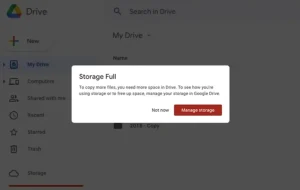
Before anything else, verify that your device has enough space for rendering and saving the final export.
How Much Is Enough?
| Export Type | Recommended Free Space |
|---|---|
| 1080p video, < 3 minutes | At least 1.5 GB |
| 4K video, > 5 minutes | 3–5 GB or more |
Also, close all background apps to free up RAM. On mobile, use a device cleaner or memory booster app to reduce active processes before exporting.
2. Lower Export Resolution and Frame Rate
If your project is set to export in 4K at 60fps with added filters and effects, that’s a lot of strain, particularly for smartphones. Try reducing the export quality:
- Switch from 4K to 1080p or even 720p if you’re targeting mobile platforms.
- Drop the frame rate from 60fps to 30fps, which reduces processing load.
These changes are available in the export settings menu before you finalize your project.
3. Update the CapCut App
Older versions of CapCut can include performance bugs that may have been fixed in newer updates. Regular updates also ensure better compatibility with your operating system.
Update Instructions:
- Mobile (Android/iOS): Go to Google Play or the App Store and check for updates.
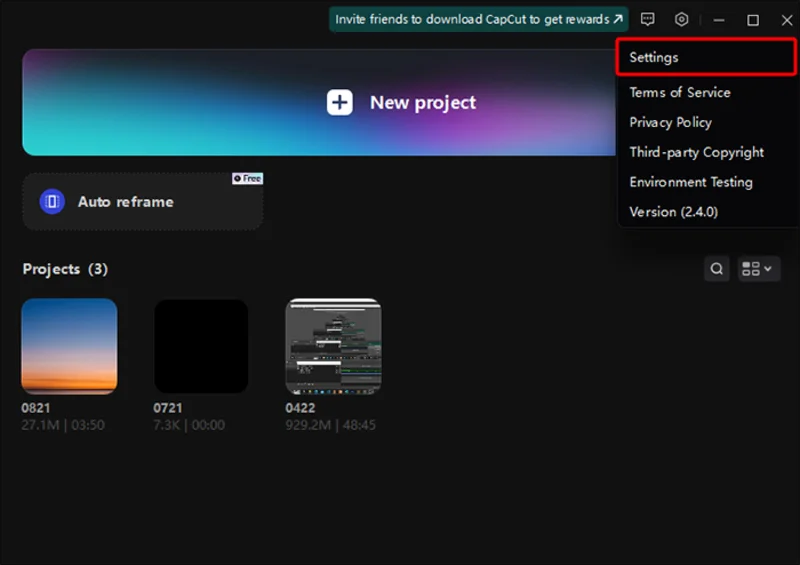
- Desktop: Launch CapCut > Click on your profile > Settings > Check for Updates.
4. Inspect Media Files for Corruption
If CapCut consistently crashes on one specific project, the issue could be with a media file used in that timeline. Corrupt video or audio files can interrupt the rendering process.
How to Test:
- Remove one clip at a time and try exporting after each removal.
- Re-encode suspicious files using a third-party video converter (like HandBrake) and re-import.
This trial-and-error method can isolate the faulty element.
5. Reduce Effects, Transitions, and Keyframes
While CapCut excels at layering effects, transitions, and animations, overuse can push even strong devices to their limits.
Optimization Tips:
- Simplify scenes by merging clips beforehand.
- Remove unnecessary overlays or animations.
- Reduce the number of simultaneous layers.
Try exporting smaller sections of the project to see where the system becomes unstable.
6. Use the Desktop Version for Heavier Projects
If you’re hitting a wall with the mobile app, consider migrating to the desktop version of CapCut, which is better suited to handle intensive exports.
Benefits of Desktop CapCut:
- Utilizes GPU and system RAM more efficiently
- Handles 4K and long-form projects more reliably
- Offers more advanced file management
If you’re already using the desktop version and still facing crashes, update your graphics drivers and ensure your PC meets the app’s minimum system requirements.
7. Clear App Cache (Mobile)
Mobile apps accumulate cache over time, which can bloat storage and cause operational bugs.
Clear Cache Instructions:
- Android:Settings > Apps > CapCut > Storage > Clear Cache
- iOS:Unfortunately, iOS doesn’t offer a direct way to clear cache. You may need to uninstall and reinstall CapCut to refresh the data.
8. Export in Smaller Segments
When all else fails, export your video in chunks. This minimizes the processing strain and helps identify the precise section causing the issue.
Workflow:
- Split the project into parts (e.g., intro, body, outro)
- Export each part individually
- Re-import the segments into a new project
- Merge and export the final version
This method also lets you salvage large projects without starting over.
Crash Troubleshooting Summary Table
| Solution | Best For | Risk Level |
|---|---|---|
| Free up RAM/storage | General lag or export crashes | Low |
| Reduce resolution/frame rate | 4K/60fps exports on mobile | Low |
| Update CapCut | App bugs or outdated functions | Low |
| Replace corrupt media files | Crashes tied to specific projects | Medium |
| Reduce transitions/effects | Performance drops on complex timelines | Medium |
| Switch to desktop version | Long/high-resolution projects | Medium–High |
| Export in parts | Unrecoverable crash mid-export | Low |
Final Thoughts
CapCut’s crash issues during export can be incredibly disruptive, especially when deadlines loom or inspiration strikes. Fortunately, most of these crashes stem from solvable problems such as over-complex projects, insufficient memory, or outdated app versions.
The key is to work smarter within the limits of your device and to regularly optimize your projects for efficiency. Whether you’re a casual content creator or a seasoned editor, applying these fixes can help ensure your creative process doesn’t come to a crashing halt.
With the right tweaks, CapCut can continue to be the powerful, free editing platform you rely on—without interruption.